
VM Based (Podman-Compose)
RegScale runs on a single Linux virtual machine (VM) using Podman Compose, with RegScale in a rootless container connecting to an external Microsoft SQL Server database. This is the recommended option for self-hosted VM deployments — including air-gapped and on-premises environments — on Red Hat Enterprise Linux 9 (recommended) or Ubuntu.
Before you begin
Complete the Prerequisites (database, DNS, SSL, networking) and review the Sizing Guide. After installation, follow the Post-Deployment Steps.
Architecture
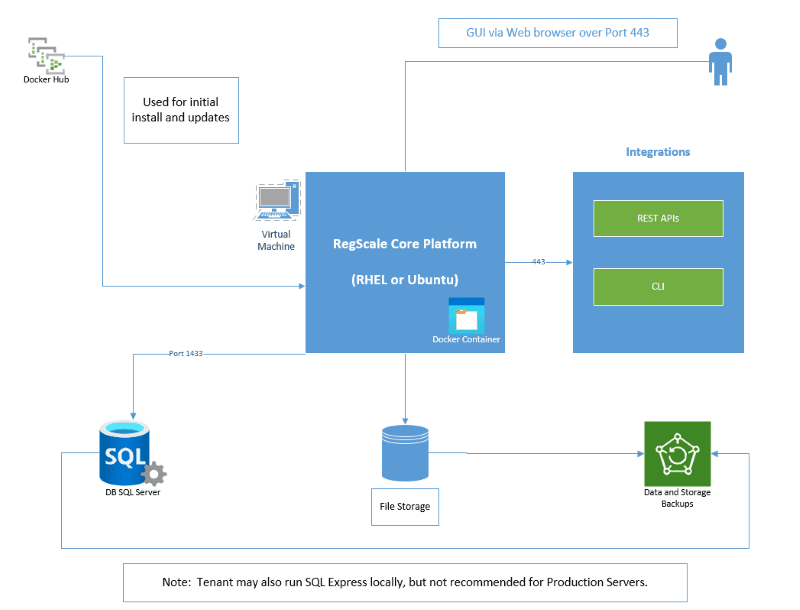
The components of this architecture are:
- RegScale Core Platform — a Linux container (Red Hat Universal Base Image) running rootless under Podman on a RHEL 9 or Ubuntu VM.
- APIs — REST APIs with a published Swagger interface for building automations and integrations.
- SQL Server — external Microsoft SQL Server 2022+ database (see Prerequisites › Database Configuration). RegScale connects to it via a connection string.
- File Storage — storage for uploaded, encrypted evidence; typically thin-provisioned to expand over time.
- Backups — both the database and file storage should be routinely backed up. The container itself is immutable and stateless and does not need to be backed up.
Prerequisites
- A Linux VM running RHEL 9 (recommended) or Ubuntu.
- A user account and access to Docker Hub or Iron Bank to pull the RegScale image. If outbound access is restricted, whitelist the registry domains listed in Prerequisites › Docker Hub Access.
- An external Microsoft SQL Server 2022+ database with Full-Text Search enabled (see Prerequisites › Database Configuration).
- DNS, an SSL certificate, and ingress configured per your organization's guidelines (see Prerequisites › DNS, SSL, and Ingress).
Install Podman and Podman Compose
RHEL 9 (Recommended)
# Install Podman and related packages
sudo dnf install -y podman podman-docker podman-plugins

# Install pip3, then podman-compose
sudo dnf install -y python3-pip
sudo pip3 install podman-compose
Ubuntu
# Install Podman and related packages
sudo apt-get update
sudo apt-get install -y podman podman-docker

# Install pip3, then podman-compose
sudo apt-get install -y python3-pip
sudo pip3 install podman-compose
Verify the Installation
podman --version
podman-compose --version
Run as a Non-Root User (Rootless Podman)
For security, run RegScale rootless under a dedicated, non-login regscale service account rather than as root.
1. Create and Configure the regscale User
regscale User# Create the regscale user if it doesn't exist
sudo useradd -m regscale
# Create the podman group if it doesn't exist, and add regscale to it
sudo groupadd podman
sudo usermod -aG podman regscale
# Set up the user's container config directory
sudo mkdir -p /home/regscale/.config/containers
sudo chown -R regscale:regscale /home/regscale/.config
2. Create the systemd User Service and Socket
Create podman.service:
sudo tee /etc/systemd/user/podman.service << EOF
[Unit]
Description=Podman API Service
Requires=podman.socket
After=podman.socket
Documentation=man:podman-system-service(1)

[Service]
Type=simple
ExecStart=/usr/bin/podman system service
TimeoutStopSec=30
KillMode=process
Delegate=yes
Type=notify
NotifyAccess=all

[Install]
WantedBy=default.target
EOF
Create podman.socket:
sudo tee /etc/systemd/user/podman.socket << EOF
[Unit]
Description=Podman API Socket
Documentation=man:podman-system-service(1)

[Socket]
ListenStream=%t/podman/podman.sock
SocketMode=0660

[Install]
WantedBy=sockets.target
EOF
3. Enable Lingering and Start the Service
# Get the UID of the regscale user (used in the commands below — 1001 in this example)
id -u regscale

# Enable lingering so the user's services run without an active login session
sudo loginctl enable-linger 1001
Log in directly as the regscale user, then enable and start the services:
# Log in as regscale. On RHEL, if a normal login fails, use machinectl for a clean shell:
#   sudo dnf install -y systemd-container
#   sudo machinectl shell regscale@
sudo su - regscale

# Set the required environment variables for this session
export XDG_RUNTIME_DIR=/run/user/$(id -u)
export DBUS_SESSION_BUS_ADDRESS=unix:path=/run/user/$(id -u)/bus

# Enable and start the socket and service
systemctl --user enable podman.socket
systemctl --user start podman.socket
systemctl --user enable podman.service
systemctl --user start podman.service
4. Persist the Environment
Add the following to /home/regscale/.bashrc (replace 1001 with the regscale UID from id -u regscale):
cat << 'EOF' >> /home/regscale/.bashrc
export XDG_RUNTIME_DIR=/run/user/1001
export DOCKER_HOST=unix:///run/user/1001/podman/podman.sock
EOF
Rootless best practices
- Log in directly as the
regscaleuser rather than usingsudo su.- Keep the container storage configuration in the user's home directory.
- Enable lingering for the
regscaleuser (above).- Set proper ownership and permissions on all RegScale directories.
Security Hardening
In addition to running rootless as a dedicated user, apply the following:
- Trusted registries only — enforce fully-qualified or explicitly-allowed image sources (see Configure Trusted Registries below).
- Strong secrets — generate unique 32-char hex (32 UTF-8 byte) JWT and Encryption keys (below). Never use the default placeholder keys, and rotate the JWT signing key periodically.
- Restrict the firewall — expose only the RegScale ports (
8080/8443) on the host; keep the OS patched. - RHEL: keep SELinux enforcing — when bind-mounting host directories into the container, append the
:Zoption so Podman applies the correct SELinux label.
Configure Trusted Registries
The RegScale image can be pulled from either of the following registries:
| Registry | Image |
|---|---|
| Docker Hub | regscale/regscale-ubi:x.x.x.x |
| Iron Bank | registry1.dso.mil/ironbank/regscale/regscale:x.x.x.x |
Replace
x.x.x.xwith the RegScale release you want to deploy. The latest release tags can be found in the RegScale Changelog.
Edit /etc/containers/registries.conf to require trusted, qualified registries:
unqualified-search-registries = ["docker.io"]
short-name-mode="enforcing"
This also resolves the short-name resolution error covered under Troubleshooting.
Configure RegScale
As the regscale user, create an install directory (for example /home/regscale/regscale) containing files/ and ssl/ subdirectories, then create the two configuration files below.
These are the reference configuration files for this deployment. Adjust the image tag, host paths, ports, and connection string to match your environment.
podman-compose.yml
podman-compose.ymlservices:
regscale:
image: regscale/regscale-ubi:x.x.x.x
user: "1001"
hostname: regscale
container_name: regscale
networks:
- regscale_net
ports:
- "8080:80"
# - "8443:443" # Optional — only needed if terminating TLS at the container (see "Add Certificates")
volumes:
- /home/regscale/regscale/files/:/regscale/files
# - /home/regscale/regscale/ssl/<regscale_cert_name>.pfx:/app/ssl/<regscale_cert_name>.pfx # Optional — only needed if terminating TLS at the container (see "Add Certificates")
env_file:
- regscale.env
networks:
regscale_net:
driver: bridge
- Update the
imagetag (x.x.x.xabove) to the RegScale release you want to deploy. - The
user: "1001"value must match the UID of yourregscaleuser (id -u regscale). - Update the volume host paths to match your install user's home directory.
regscale.env
regscale.env# File Configuration. Can be local to the server or a mounted directory
StoredFilesPath=/regscale/files
FileSizeLimit=104857600
# Generate strong, unique keys — do NOT use the placeholder values below.
# JWTSecretKey (32-char hex, 32 UTF-8 bytes): echo "JWTSecretKey=$(openssl rand -hex 16)"
# EncryptionKey (32-char hex, 32 UTF-8 bytes): echo "EncryptionKey=$(openssl rand -hex 16)"
# Avoid `openssl rand -base64 32` for these keys — that produces 44 characters
# (not 32 bytes) and will fail the legacy AES key-length check.
JWTSecretKey=<yourJWTSecretKey>
EncryptionKey=<yourEncryptionKey>
SQLConn=Server=tcp:<db-server>,1433;Initial Catalog=REGSCALE;Persist Security Info=False;User ID=<db_admin>;Password=<db_password>;MultipleActiveResultSets=False;Encrypt=True;TrustServerCertificate=False;Connection Timeout=30;
# Uncomment the lines below to enable TLS (see "Add Certificates")
#ASPNETCORE_URLS=https://+:443;http://+:80
#Kestrel__Certificates__Default__Path=/app/ssl/<regscale_cert_name>.pfx
#Kestrel__Certificates__Default__Password=<your_cert_password>
- Set
SQLConnto point at your external SQL Server 2022+ database. - WARNING: Once the
EncryptionKeyis in use it must not be changed — doing so can make encrypted data unreadable. - WARNING: Avoid
openssl rand -base64 32for theEncryptionKey— it produces 44 characters (not 32 bytes) and will fail the legacy AES key-length check. Useopenssl rand -hex 16(32 characters).
Run RegScale
From the install directory (as the regscale user):
cd /home/regscale/regscale
podman-compose up -d
- Verify the container is running with
podman psorpodman-compose ps. - Point your browser to
https://<your-host>:8443(orhttp://<your-host>:8080if TLS is not configured). - The first launch may take a few minutes; keep refreshing until the RegScale login appears.
- See Post-Deployment Steps to continue.
To stop RegScale (data in the mounted volumes is retained):
podman-compose down
Add Certificates (SSL/TLS)
TLS/SSL is optional
Configuring TLS at the container level is only required if your organization needs TLS termination at the container. If TLS is terminated upstream (for example, at a load balancer, reverse proxy, or ingress controller), you can skip this section.
RegScale supports SSL certificates for encrypted communications. Certificates can be self-signed, signed by an internal CA, or signed by an external CA. Self-signed certificates should only be used in test environments.
-
Place your certificate in PFX format at
ssl/<regscale_cert_name>.pfxinside your install directory (this is mounted to/app/ssl/<regscale_cert_name>.pfxin the container bypodman-compose.yml). -
In
regscale.env, uncomment and set the TLS lines:ASPNETCORE_URLS=https://+:443;http://+:80 Kestrel__Certificates__Default__Path=/app/ssl/<regscale_cert_name>.pfx Kestrel__Certificates__Default__Password=<your_cert_password> -
Restart RegScale:
podman-compose down podman-compose up -d -
Point your browser to
https://<your-host>:8443.
Helpful Utilities
podman ps -a— list containerspodman-compose ps— list containers managed by the compose filepodman logs -f regscale— follow the RegScale container logspodman exec -it regscale /bin/sh— open a shell inside the RegScale containerpodman volume list— list volumespodman-compose down/podman-compose up -d— stop / start the deployment
Troubleshooting
If you see an error like:
Error: short-name "regscale/regscale-ubi:x.x.x.x" did not resolve to an alias and no unqualified-search registries are defined in "/etc/containers/registries.conf"
Add the following to /etc/containers/registries.conf (see Configure Trusted Registries):
unqualified-search-registries = ["docker.io"]
short-name-mode="enforcing"
Air Gap Deployments
The preceding steps require the installation target to be Internet-accessible. To install RegScale on an air-gapped network, copy the container image from an Internet-facing machine using skopeo, then load it on the air-gapped VM.
-
Install
skopeoon an Internet-facing machine:sudo dnf install -y skopeo -
Copy the RegScale image (and, if you host SQL Server locally rather than externally, the SQL Server 2022 image):
skopeo login docker.io skopeo copy docker://regscale/regscale-ubi:x.x.x.x dir:./images/regscale # Optional, only if running SQL Server in a local container: skopeo copy docker://mcr.microsoft.com/mssql/server:2022-latest dir:./images/mssql -
Compress the images directory:
tar -cvf containers.tar ./images -
Transfer
containers.tarto the air-gapped VM using your approved method (sneakernet, one-way transfer, etc.). -
On the air-gapped VM, expand the archive:
tar -xvf containers.tar -
Load the image(s) with Podman:
podman load -i ./images/regscale # Optional, if you copied it: podman load -i ./images/mssql -
The image is now available for the
podman-composecommands above.
Updated 4 months ago