
AI Policy Builder
AI powered tool to create standardized policies from security profiles and catalogs.
Prerequisites
- Security Profiles have been configured in your RegScale environment with control mappings.
- Security Control Catalogues are loaded (e.g., NIST 800-53, ISO 27001, CIS Controls).
- User has appropriate permissions to create and update Policies.
Using the Policy Builder
-
Navigate to an existing Policy or create a new Policy.
-
Click the "Utilities" tab in the policy form.
-
Click the "Builder" button to open the wizard.
-
Follow the 3-step wizard process to add security controls as requirements to your policy.
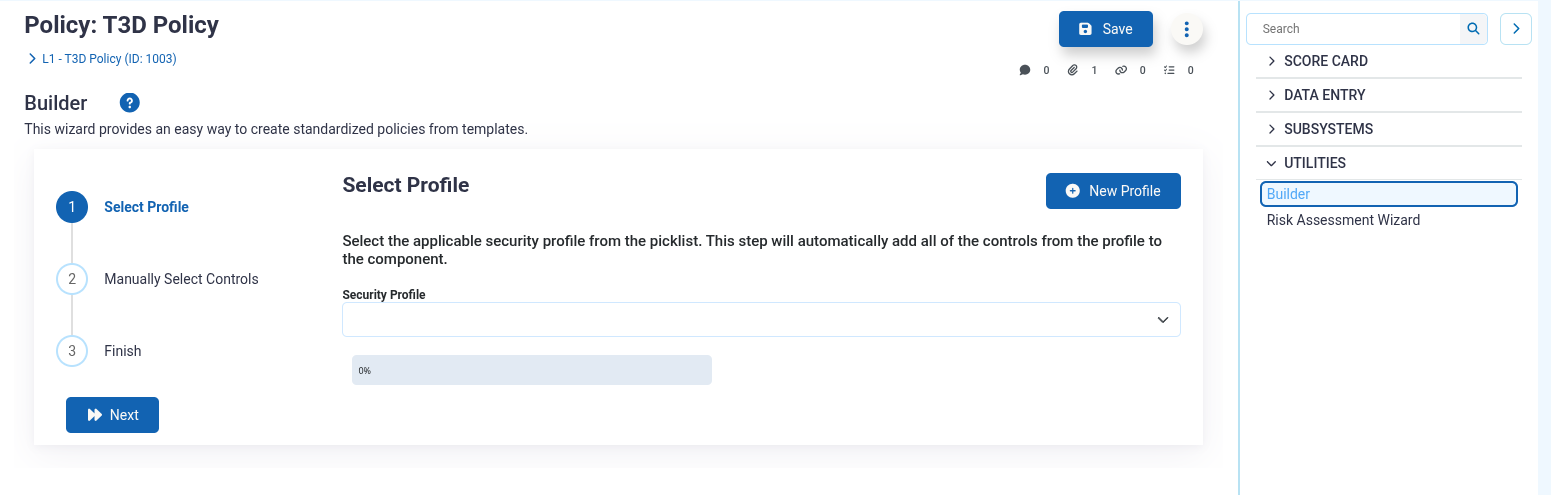
Step 1: Select Profile
-
From the Security Profile dropdown, select the applicable security profile template.
- Security Profiles contain pre-configured collections of security controls (e.g., NIST 800-53 Moderate Baseline, ISO 27001 Core Controls).
- Each profile may contain controls from one or more security control catalogues.
-
Click "View Profile" to review the controls included in the selected profile before adding them.
-
Click "Next" to proceed to the next step.
-
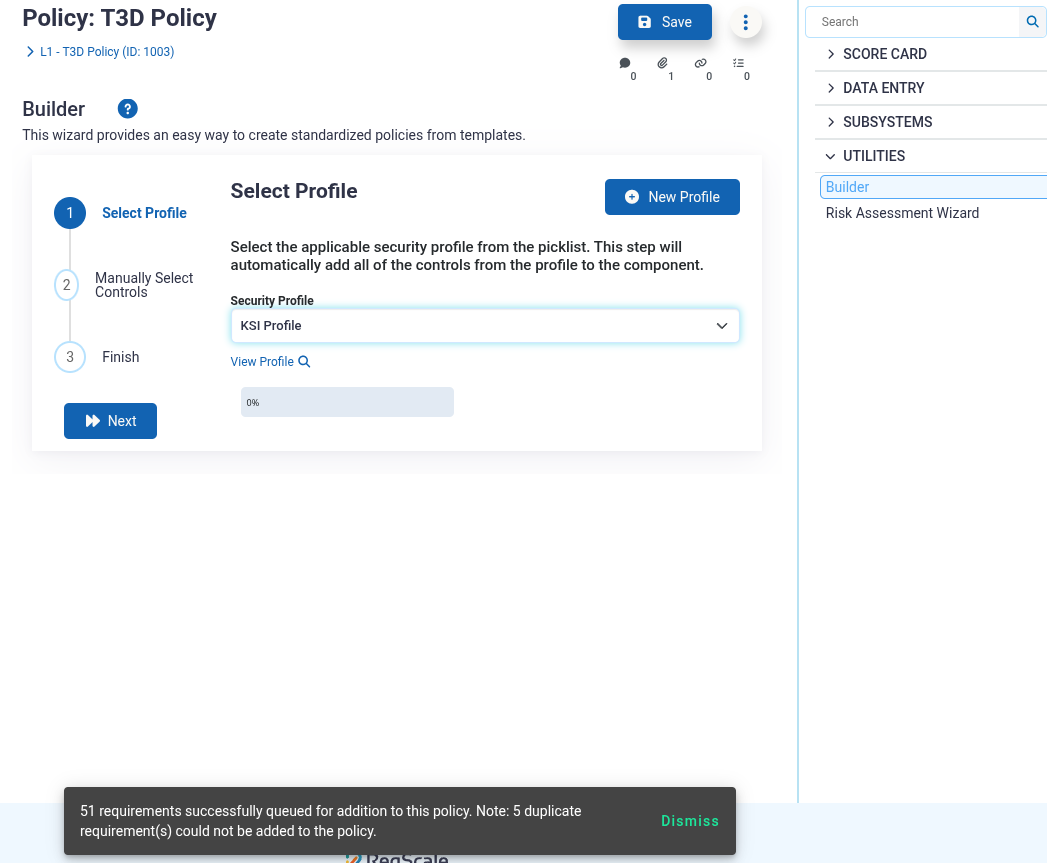
The system will automatically queue all controls from the selected profile as requirements for your policy.
- Controls that already exist as requirements in the policy will be skipped (no duplicates created).
- A toast notification will display the number of new requirements queued for addition.
-
You can select multiple profiles by repeating this process. Each profile's controls will be added to the queue.
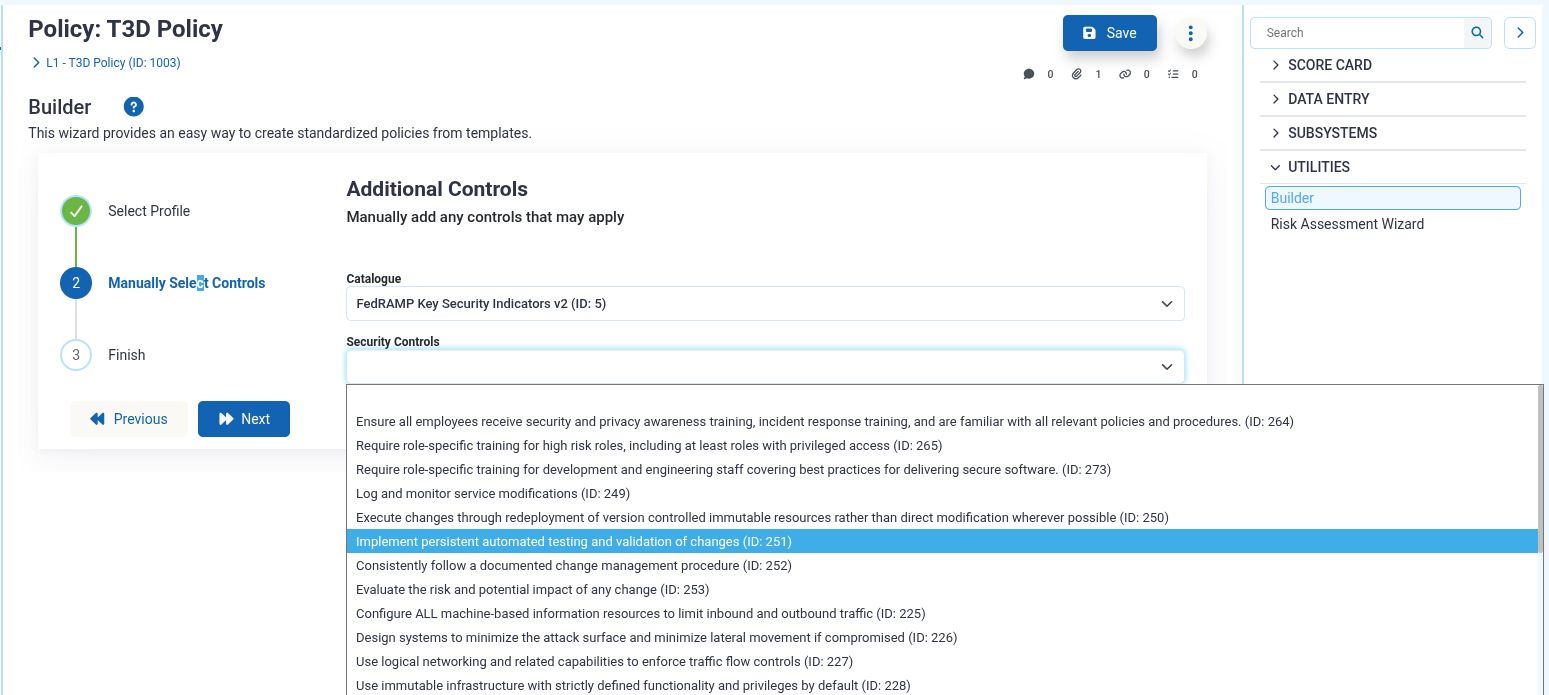
Step 2: Manually Select Controls
This step allows you to add individual security controls that may not be included in the selected profiles.
-
Select a Catalogue from the dropdown to filter the available security controls.
- Catalogues organize controls by framework (e.g., NIST 800-53, ISO 27001, CIS Controls).
-
Select a Security Control from the dropdown to add it to the queue.
- The control will be automatically added to the requirement queue when selected.
- Duplicate controls (already in the policy or already queued) will be rejected with an error message.
-
The badge indicator shows the number of controls in the queue waiting to be created.
-
Continue selecting additional catalogues and controls as needed.
-
Click "Next" to proceed to the review step.
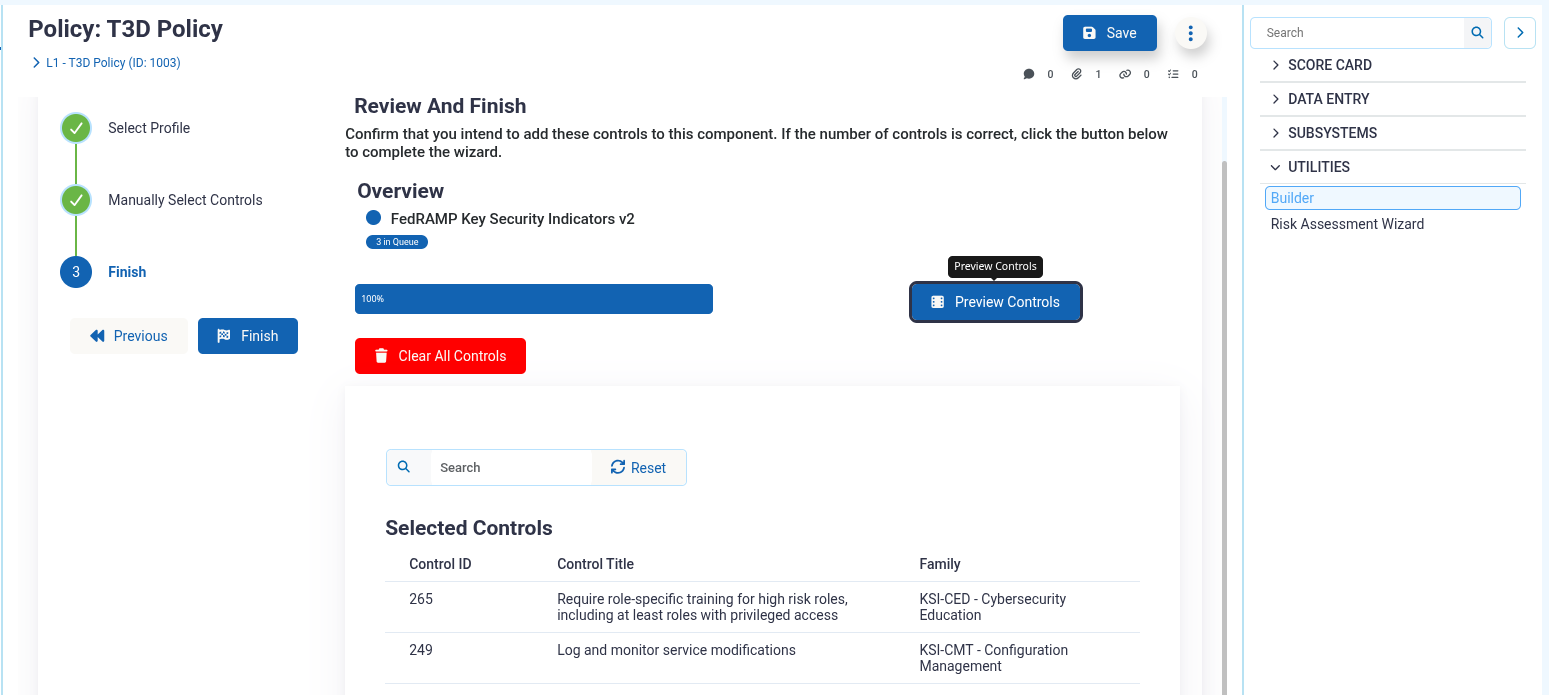
Step 3: Review and Finish
This step displays an overview of all controls that will be added to the policy, grouped by source (profile or catalogue).
-
Review the summary showing:
- Each profile or catalogue name
- The number of controls from each source that will be added
-
Click "Preview Controls" to view a detailed table of all selected controls.
- The preview shows Control ID, Control Title, and Family for each control.
- Use this to verify the controls before finalizing.
-
Click "Clear All Controls" to remove all queued controls and start over (if needed).
-
The progress bar at the bottom shows your completion status through the wizard (100% at this step).
-
When satisfied with the selection, click "Finish" to create all requirements.
- The system will batch-create all queued requirements in a single operation.
- Profile links will be created to track which profiles were used to build this policy.
- A notification will be sent to the policy owner about the newly assigned requirements.
- Upon completion, you will be returned to the policy form.
Viewing Created Requirements
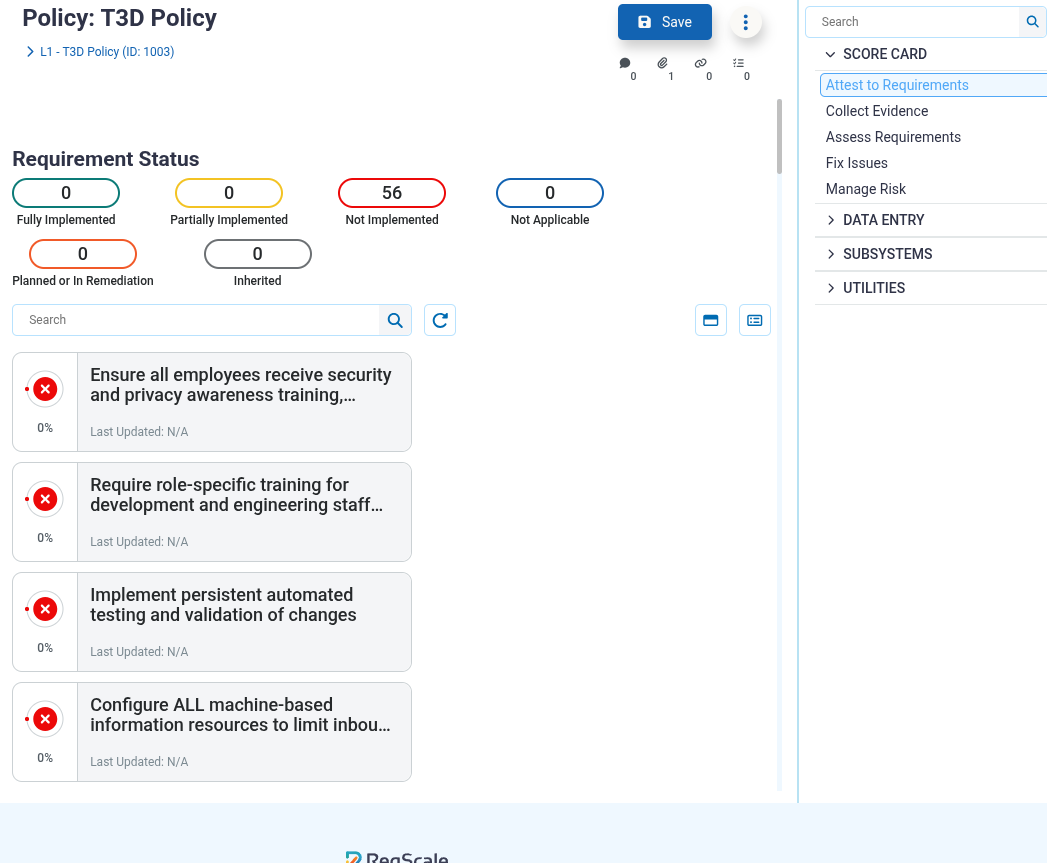
After completing the Policy Builder wizard, navigate to the "Attest to Requirements" tab in the policy form's Score Card section to view all created requirements in card view.
Each requirement will include:
- Title and description from the security control
- Control ID reference linking back to the source security control
- Default status of "Not Implemented"
- Assigned to the policy owner (or current user if policy owner is not set)
Requirements can be individually edited, updated, or deleted as needed after creation.
Troubleshooting
-
"No controls available for this profile" – This profile has no control mappings configured. Contact an administrator to add controls to the profile via Profile Mapping.
-
"All controls from [profile name] exist as requirements" – All controls in this profile are already requirements in the policy. Select a different profile or manually add individual controls.
-
"Unable to add duplicate requirement" – The selected control already exists as a requirement in this policy. Choose a different control.
-
Requirements not appearing after clicking "Finish" – Verify you have permissions to create requirements in the Policies module. Check that the batch creation operation completed successfully (toast notification should confirm).
-
Policy Builder button not visible – Verify you have Update permissions for the Policies module. The Policy Builder is only available to users with write access.
Updated 8 months ago