
Evidence Mapping
Link evidence documents to security controls, security plans, and system components to demonstrate compliance.
Prerequisites
- Evidence module is enabled in your RegScale environment.
- User has appropriate permissions to create and manage evidence mappings (GeneralUser, Manager, SecurityPlanUser, AssessmentUser, or SupplyChainUser role).
- At least one evidence record exists in the system.
- Target items (security controls, security plans, or components) are available for mapping.
Understanding Evidence Mapping
Evidence mapping creates relationships between evidence documents and compliance artifacts in RegScale. This allows you to:
- Link evidence to specific security control implementations
- Associate evidence with system security plans
- Connect evidence to individual system components
- Track which evidence supports which compliance requirements
- Generate compliance reports showing evidence coverage
Starting a New Evidence Mapping
-
Navigate to the Evidence module and select an evidence record.
-
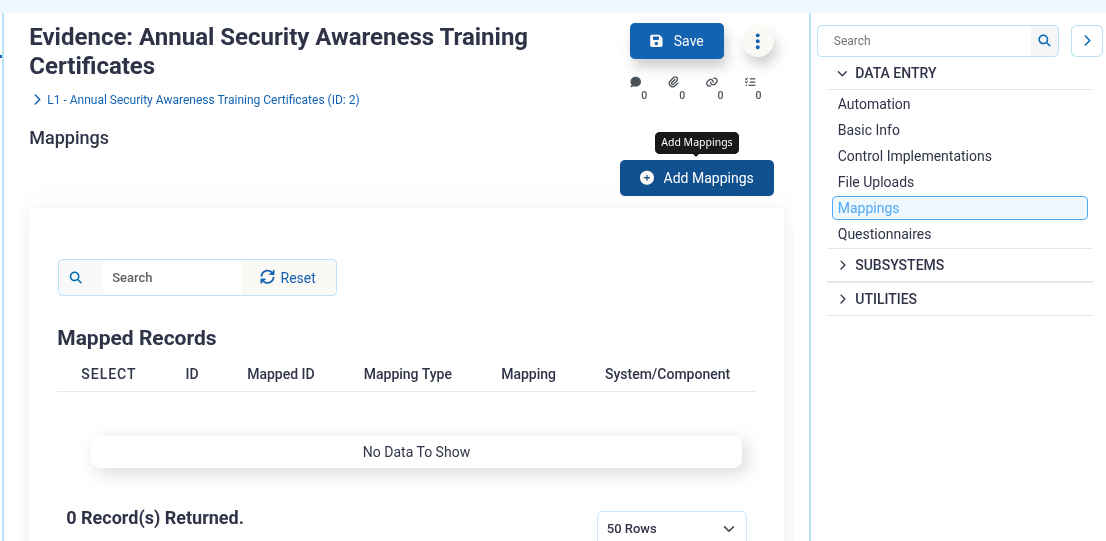
Click the "Mappings" tab within the evidence record.
-
Click the "Add Mappings" button in the upper right corner.
-
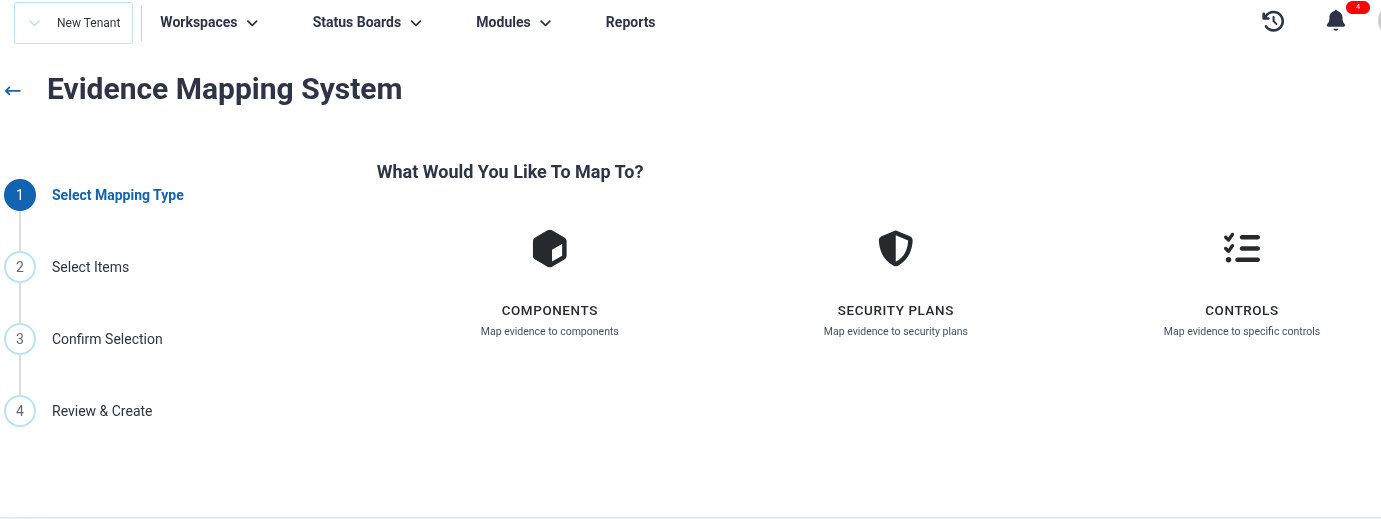
Select the mapping type you wish to create:
- Security Plans - Map evidence to entire system security plans
- Components - Map evidence to individual system components
- Controls - Map evidence to specific security control implementations
-
Click Next to proceed to the selection screen.
Mapping to Security Plans
- From the list of available security plans, select one or more plans by clicking the checkbox next to each plan.
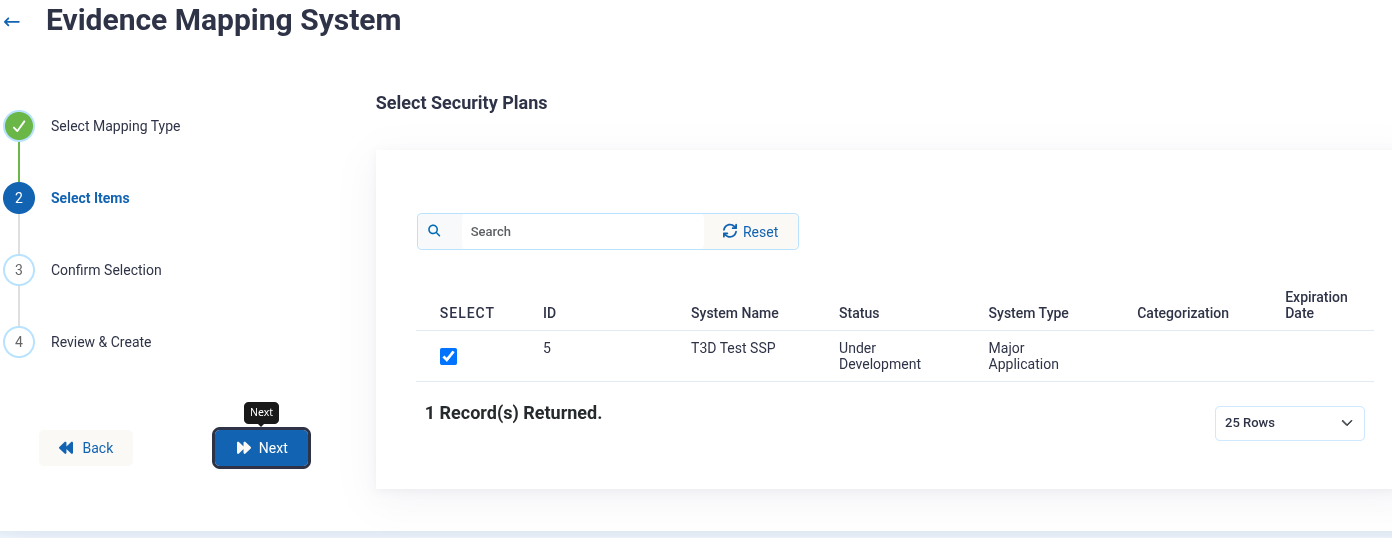
- Existing mappings will be indicated with a visual marker.
- Click "Next" to confirm your selections.
- Click "Create Mappings" to map all non-duplicate controls from the SSPs selected to the evidence record.
- You will be redirected to the Evidence Mapping tab where you can view all mappings.
Mapping to Components
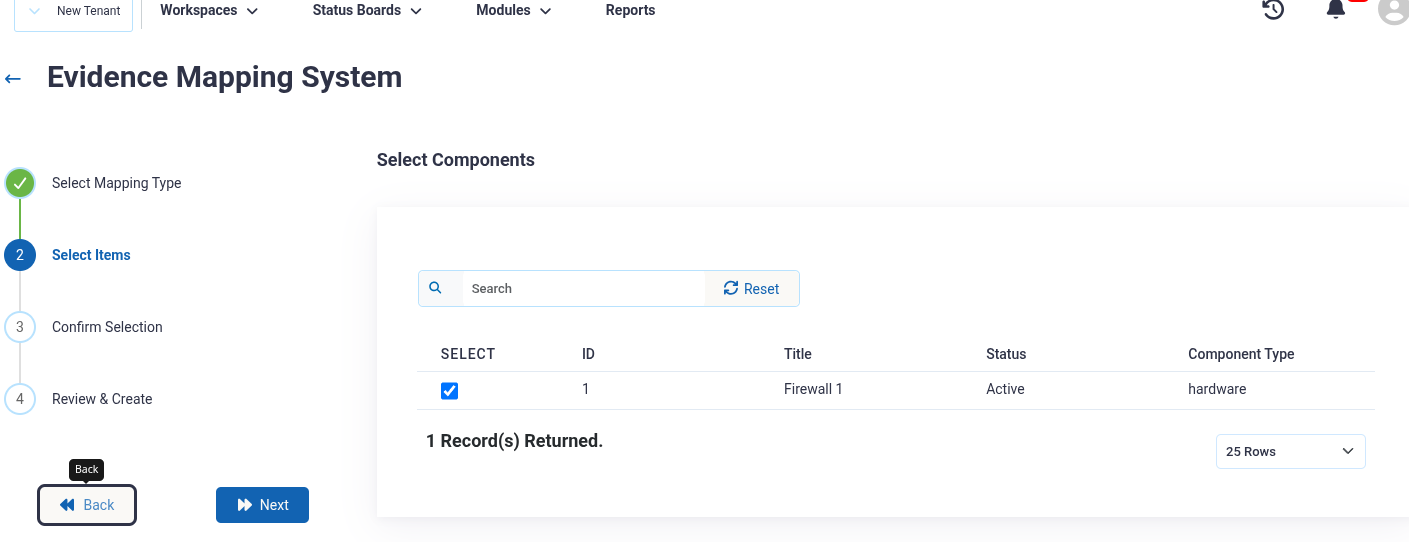
- From the list of available components, select one or more components by clicking the checkbox next to each component.
- Click Next to view the controls associated with the selected component(s).
- Select the specific control implementations you wish to map.
- Click Next to review similar controls (optional).
- Click "Finalize Mapping" to create the mappings.
Mapping to Security Controls
-
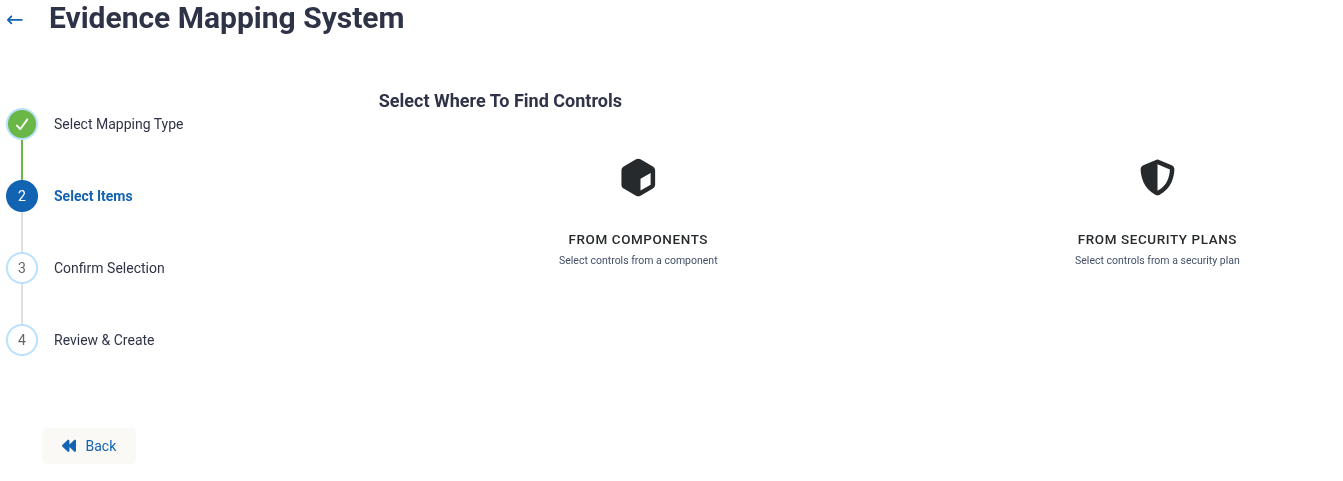
Select whether to map by Component or by Security Plan:
- Component - Shows controls implemented within a specific system component
- Security Plan - Shows controls documented in a specific security plan
-
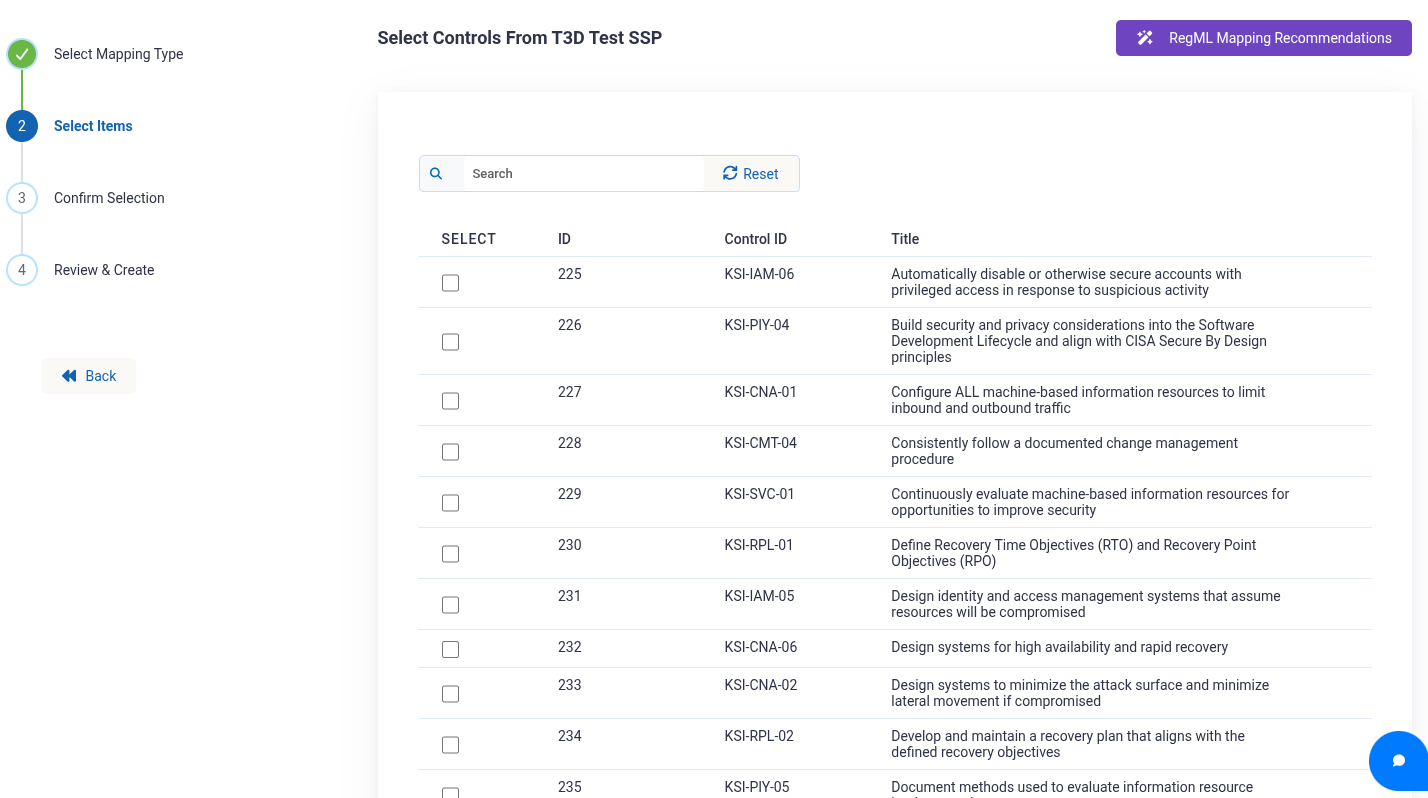
Select the parent record (component or security plan).
-
From the list of control implementations, select the controls you wish to map.
-
Click Next to view similar controls across other systems/components.
-
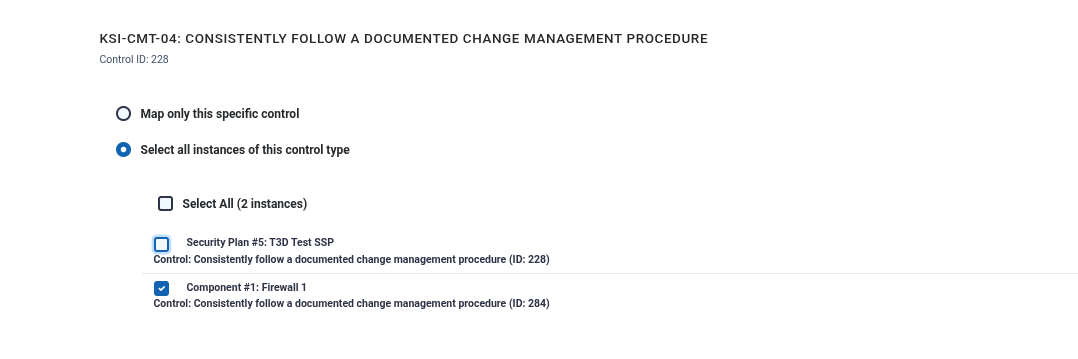
Choose your mapping strategy:
- Map Selected Control Only - Maps only the control you selected
- Map All Similar Controls - Shows controls with the same control ID (e.g., AC-1) across different systems/components, allowing you to map multiple implementations at once
-
If selecting "Select all instances of this control type":
- Use the "Select All" checkbox to select all similar controls
- Or manually select individual controls from the list
- The system displays the parent system/component for each control to help you identify which implementation you're mapping
-
Click "Finalize Mapping" to create the mappings.
Using AI-Powered Recommendations (Optional)
If RegML is enabled in your environment, you can leverage AI to recommend relevant control mappings:
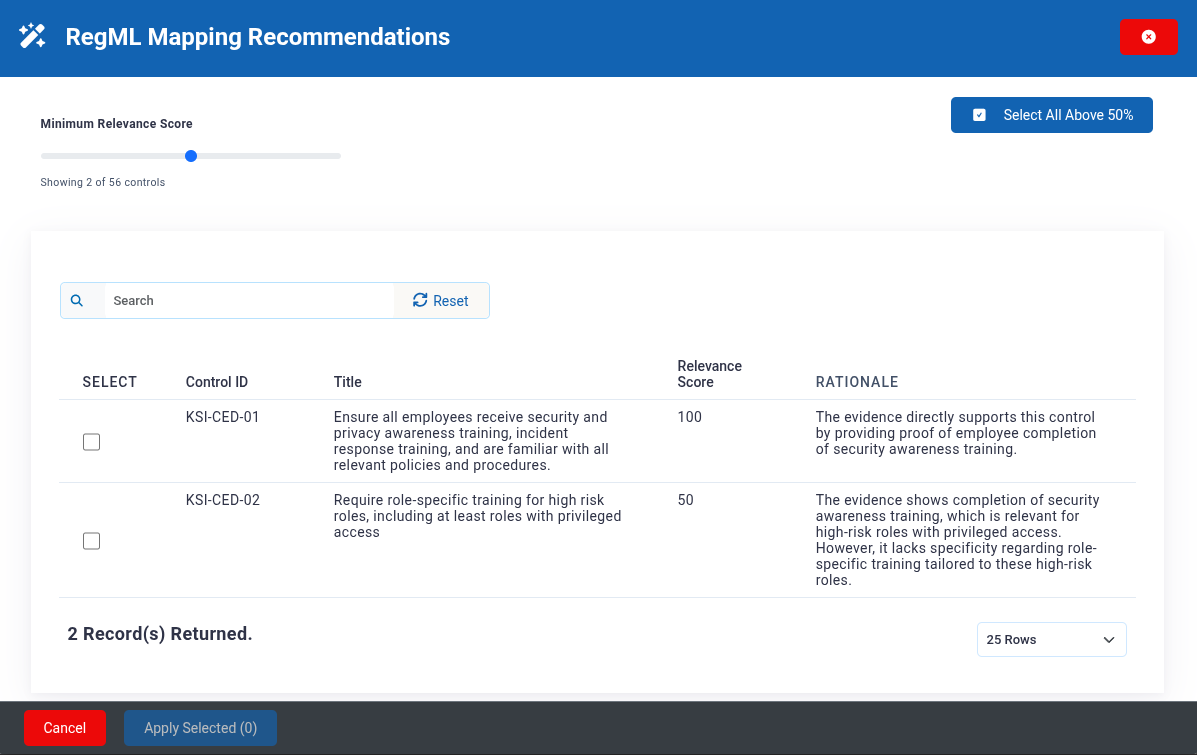
- When mapping to controls, click the "RegML Mapping Recommendations" button.
- The system will analyze the evidence document and compare it against all available control implementations.
- AI processing occurs in batches, with a progress indicator showing completion status.
- Once complete, you will see a list of recommended controls with:
- Relevance Score (0-100) - Indicates how well the evidence aligns with the control
- Rationale - Brief explanation of why the control is relevant
- Color-coded indicators based on confidence score
- Use the relevance score slider to filter recommendations by minimum score (default: 50).
- Select the controls you want to map by clicking the checkbox next to each recommendation.
- Use "Select All" to quickly select all recommendations above the current threshold.
- Click "Apply Selected" to add the selected controls to your mapping selection.
- The selected controls will be added to your control selection, and you can proceed with the normal mapping workflow.
Viewing and Managing Existing Mappings
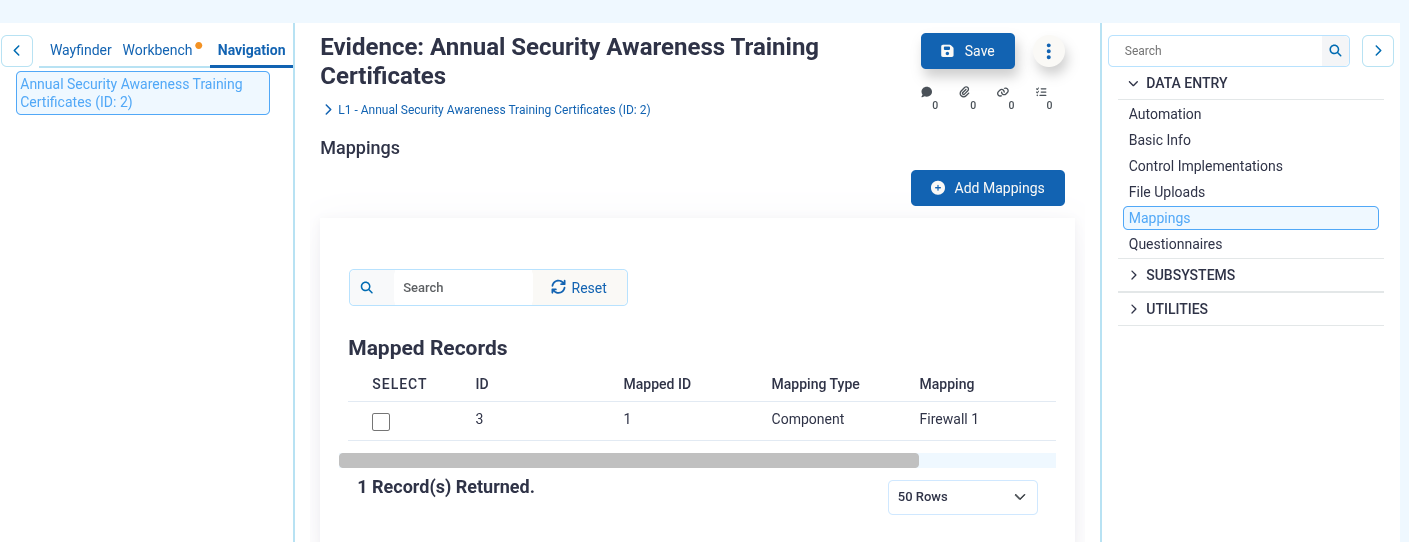
- From the Mappings tab, you can view all existing mappings for the current evidence record.
- The list view displays:
- Mapping ID
- Mapped ID (the ID of the linked item)
- Mapping Type (Control, Security Plan, or Component)
- Mapping (the title of the linked item)
- System/Component (the parent system or component)
- Click on any row to navigate to the mapped item's detail page.
Deleting a Mapping
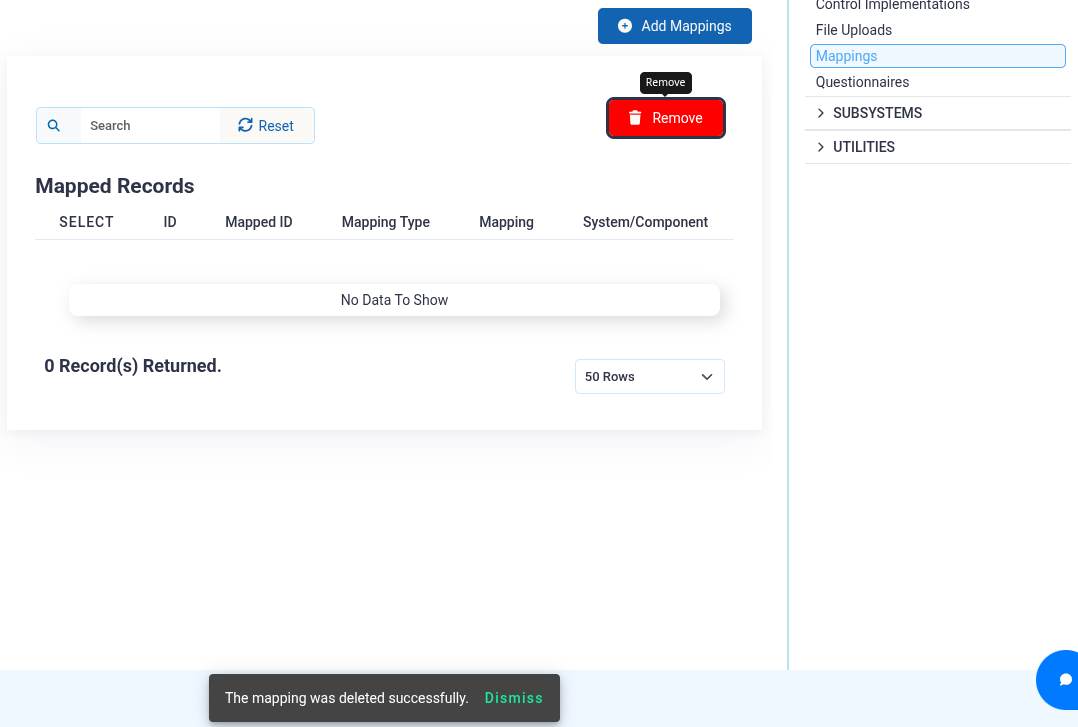
- From the Evidence Mapping list view, select the mapping(s) you wish to remove.
- Click the Remove (trash can) to remove the mapping(s).
- Confirm the deletion when prompted.
- The mapping will be permanently removed, and the list will automatically refresh.
- Note: Deleting a mapping does not delete the evidence or the mapped item, only the relationship between them.
Troubleshooting
- "Unable to save this mapping" error - This typically occurs when trying to create a duplicate mapping. Each evidence record can only be mapped once to each specific control, security plan, or component. Check the existing mappings list to see if the relationship already exists.
- No controls available for the selected record - The selected security plan or component does not have any control implementations associated with it. You must first add control implementations to the parent record before you can map evidence to those controls.
- Duplicate record exists - You are attempting to create a mapping that already exists. Navigate to the Evidence Mapping tab to view existing mappings. If you need to update the mapping, delete the existing one first, then create a new mapping.
- AI Recommendations not available - AI-powered recommendations require RegML infrastructure to be deployed and properly configured in your environment. Contact your administrator to enable this feature.
- AI Recommendations show low relevance scores - This can occur when evidence documents lack sufficient descriptive content (title, description, type fields are empty or minimal). To improve AI recommendations, ensure your evidence records have detailed titles and descriptions that clearly explain what the evidence demonstrates.
- Unable to delete mapping / Unauthorized error - You may not have permission to delete the mapping. Contact your administrator for assistance.
Updated 8 months ago