
App Management
Overview
App Management allows you to segment security, risk and compliance activities by Business Units (BU), enabling organizations to manage multiple teams, departments, or portfolio entities within a single tenant without requiring separate logins or environments.
Key Capabilities
-
Business Unit Management: Organizations can now create and manage Business Units (BUs) within a single tenant. HQ administrators retain centralized oversight while delegating day-to-day administration to BU-level admins.
-
Data Isolation by Business Unit: All records are now scoped to a Business Unit, ensuring users only see and interact with data belonging to the BU(s) they are authorized to access.
-
Granular Access & Default Permissions: Access control has been enhanced with default record permissions applied at creation time, configurable per application and module.
-
Centralized HQ Configuration: HQ administrators can centrally manage and enforce tenant-wide configurations, including SSO and Access Roles.
Prerequisites
-
Administrator Role: Only users with Administrator privileges can access App Management
-
Understanding of Your Workflow: Know what information your team needs to capture and who should be accessing what
-
Familiarity with RegScale Modules: Understanding of Security Plans, Risks, Issues, etc.
Important Note: With the release of App Management (version 6.29), Automation Manager can now be found within App Management (Setup > Select App > Automation tab)
Accessing App Management
Navigation Path
-
Log in to RegScale with an Administrator account
-
Select your profile icon in the top-right corner.
-
Select Setup.
-
In the left pane, select App Management.
-
Select the App you wish to manage or Add New.
a. (Optional) You have the ability to duplicate an App. To do so, click the More Options icon to the right of the App (three vertical dots) and select Duplicate.
Note: Once creating an App you cannot delete the created App.
App Management Interface
The App Management interface consists of several key areas:
General
The General section of the selected App is intended to capture basic, yet key details for the App, including:
-
App Name
-
App Description (the Business Unit or function that this App will serve)
-
App Logo (if different from the broader Tenant's logo)
-
App Banner (clearly documenting the data classification for the App)
-
Administrators (documenting who is accountable for administrating this App)
Access Control
The Access Control section of the selected App enables App Administrators to define default access permissions per module, inclusive of the following options:
-
Default Public
-
Inherent Access List from Parent
-
Default Users
-
Default Groups
Groups
Note: Default Legacy Groups are migrated over into the initial default App as Group Roles
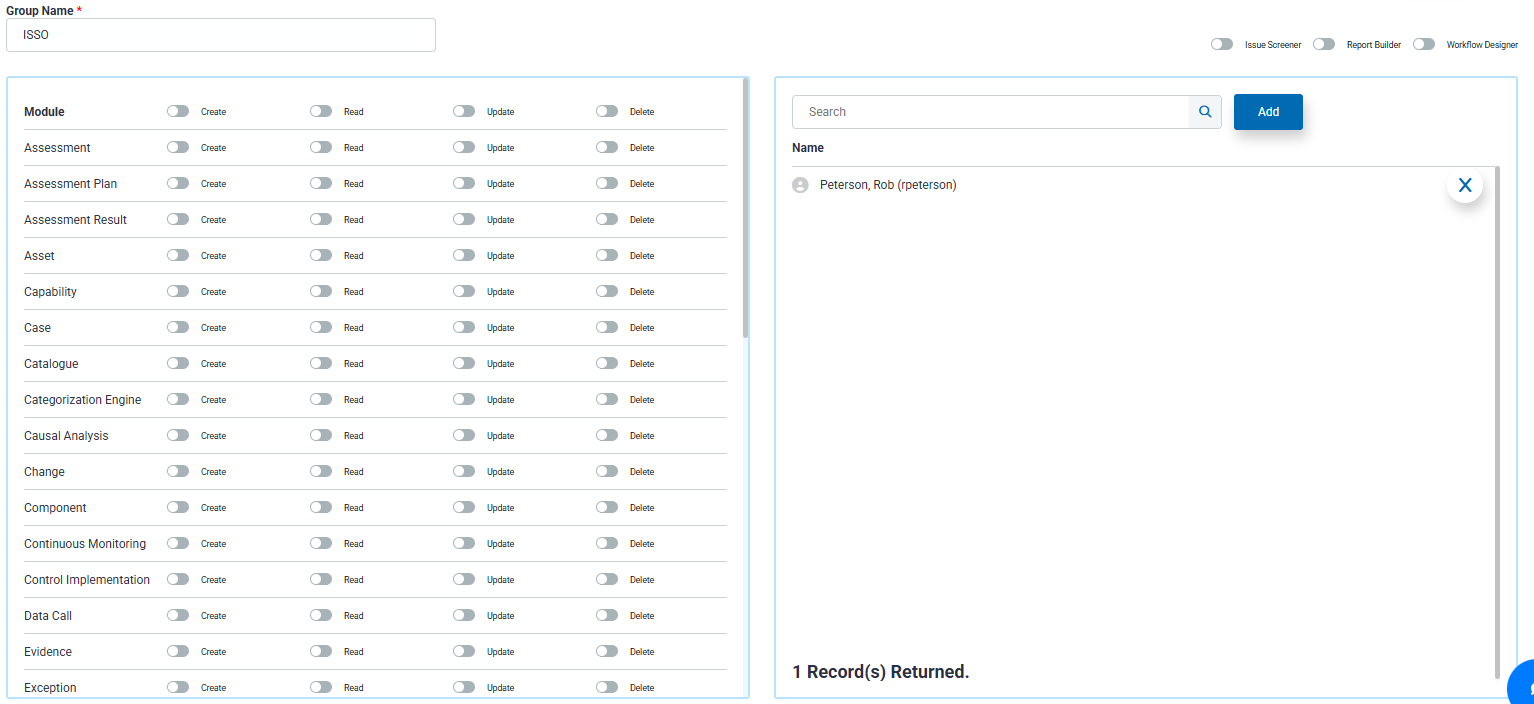
The Groups section of the selected App enables App Administrators to maintain tighter control over who can interact with specific RegScale modules. For users logging in with SSO, the group configured in the Identity Provider will be assigned automatically to that user and will not be removed. If you want to change the group assignment at a later time in the Identity Provider the user will still be in the old group and also in the new group. The user can be manually removed from the old group in the App if that is the desired state.
Note: SSO assignments will work only in the default app for a tenant.
Within each Group, the Administrator(s) can set Create, Read, Update and Delete permissions.
Users
The Users tab of the selected App displays all users with access to the App. By clicking on a user record, Administrators can:
-
Update user information (i.e. Organization, Email Address, etc.)
-
Assign the user to one or more defined Groups
-
Appoint one or more delegates
-
Monitor activity, email notifications and access logs
Note: Additional functions such as resetting a password, unlocking the user account and disabling the user have been relocated to the More Tools dropdown (three vertical dots) adjacent to the Save button.
Service Accounts
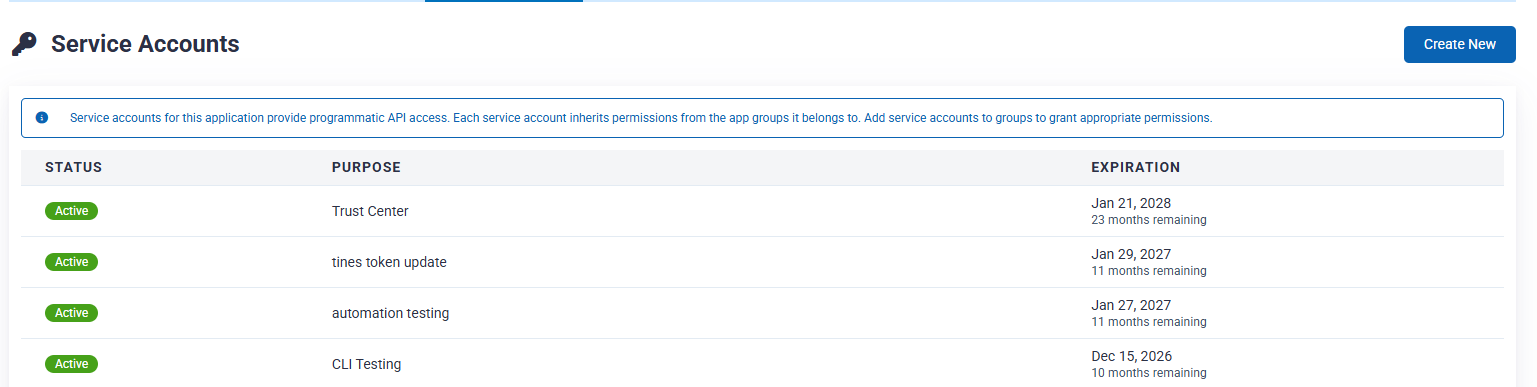
The Service Accounts tab of the selected App allows App Administrators to manage all service accounts supporting the App. For each service account, Administrators can do the following:
-
Document the service account's purpose
-
Set a Token Duration
-
Require Administrator Access
-
Set module-level Create, Read, Update or Delete rights
Automation
The Automation tab of the selected App captures relevant integration details (relocation of Automation Manager). Additional details can be found here.
User Navigation
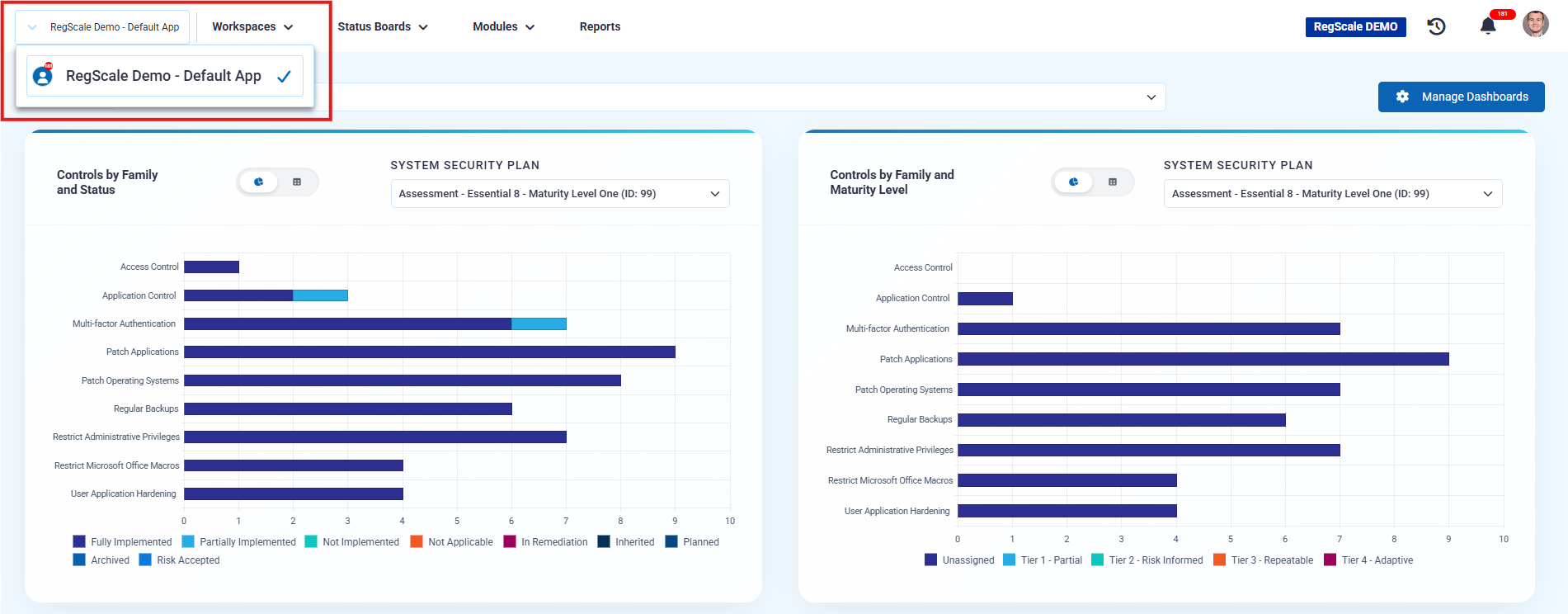
Following App(s) configuration, users will interact with the "Home" button to switch between Apps. As you can see in the below screenshot, you can select the dropdown next to the App logo in the upper-left corner of the screen.
Updated 8 months ago