
RegML Auditor
RegML Auditor evaluates the completeness and quality of control implementations for a security plan.
Prerequisites
- RegML and Security Plans are enabled by an administrator in your RegScale environment.
- The RegML backend and supporting infrastructure have been deployed to your environment.
- Security Plan exists with associated control implementations to audit.
Overview
The RegML Auditor performs two types of automated audits on security control implementations:
- Completeness Audit - Validates that required fields and data are present
- AI Quality Audit - Uses RegML to evaluate the quality and adequacy of control statements
Both audits run concurrently and provide detailed scoring, analytics, and actionable insights.
Starting a New SSP Audit
Accessing the RegML Auditor
- Navigate to a Security Plan record in RegScale
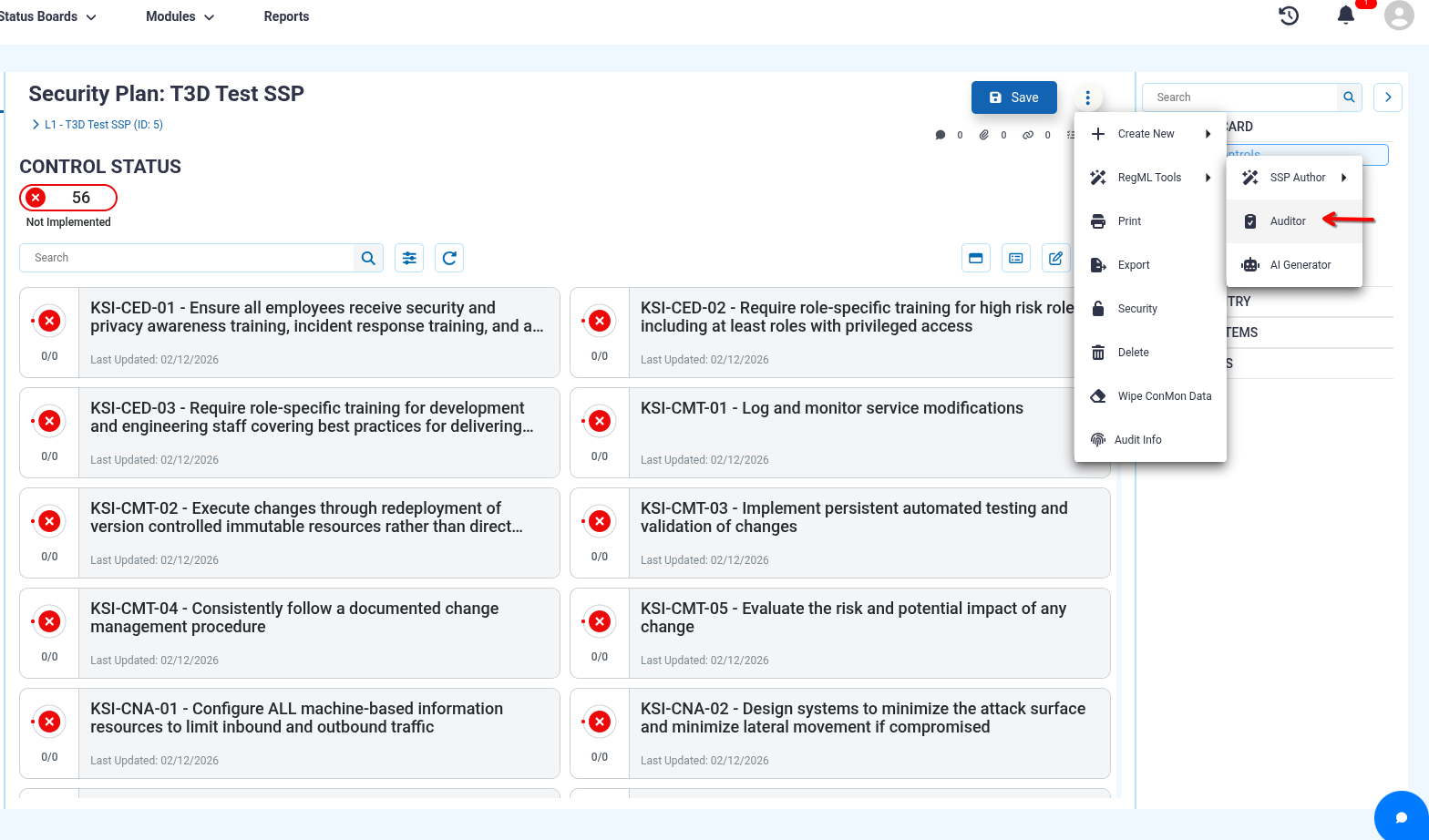
- Click the "Auditor" tab under "RegML Tools" in the record menu
- The auditor will display the Options tab with available actions
Running an Audit
- From the Options tab, click the "Run New AI Audit" button
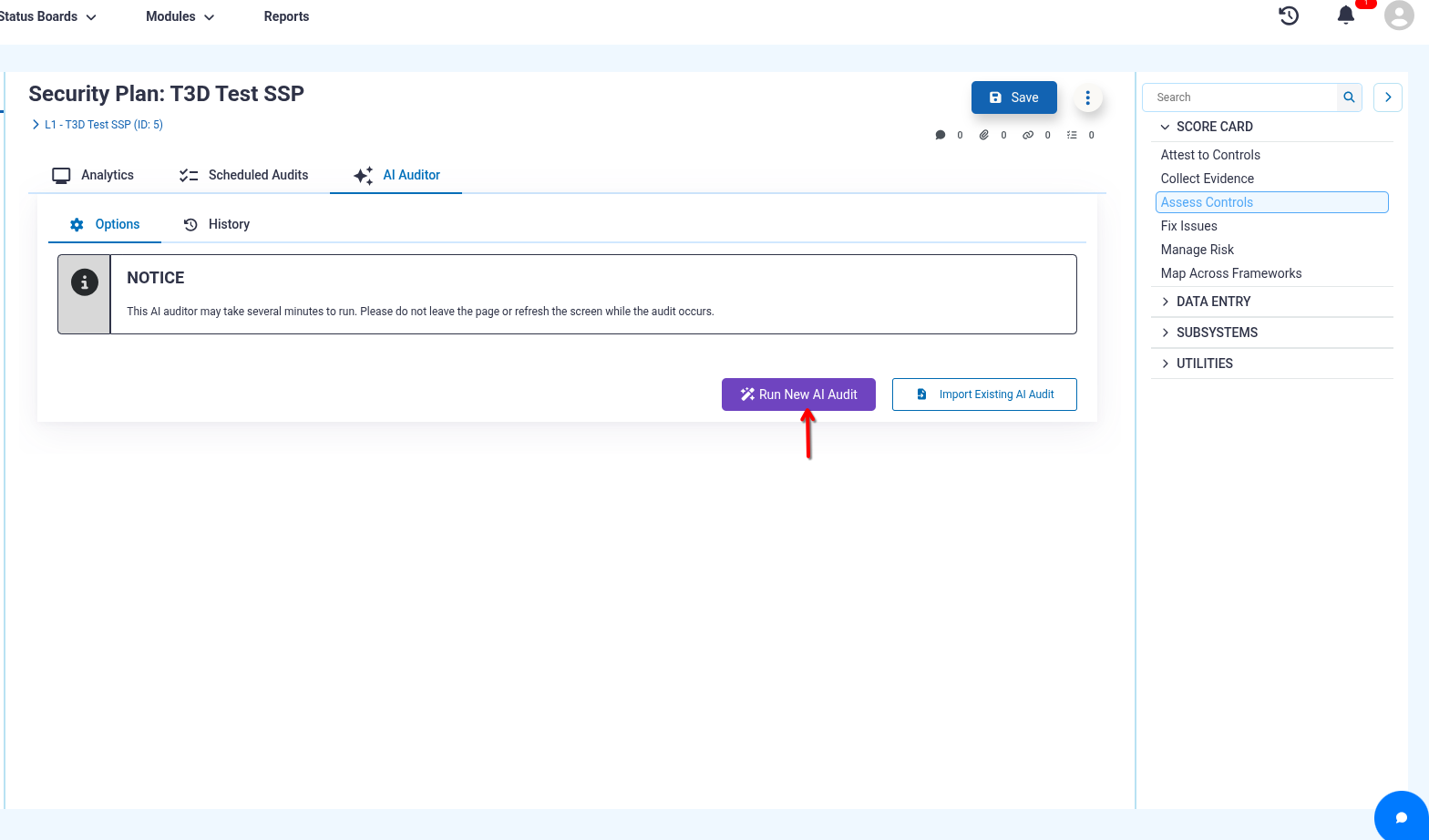
- The audit will begin processing all control implementations associated with the security plan
- Two progress bars will display:
- Completeness Audit Progress - Shows progress of field validation checks
- AI Quality Audit Progress - Shows progress of RegML-powered quality evaluation
IMPORTANT: The audit may take several minutes to complete depending on the number of controls. Do not leave the page or refresh the screen while the audit is running.
What the Auditor Evaluates
Completeness Checks:
- Implementation statements (standard, cloud, or customer)
- Part/objective statements and responsibilities
- Assigned roles and responsibilities
- Maturity assessment levels
- Evidence attachments
- Assessment dates and results
AI Quality Checks (RegML):
- Control requirement satisfaction
- Statement adequacy and clarity
- Part/objective requirement satisfaction
- Overall implementation quality
- Alignment with security control standards
Understanding Audit Results
Viewing the Completeness Tab
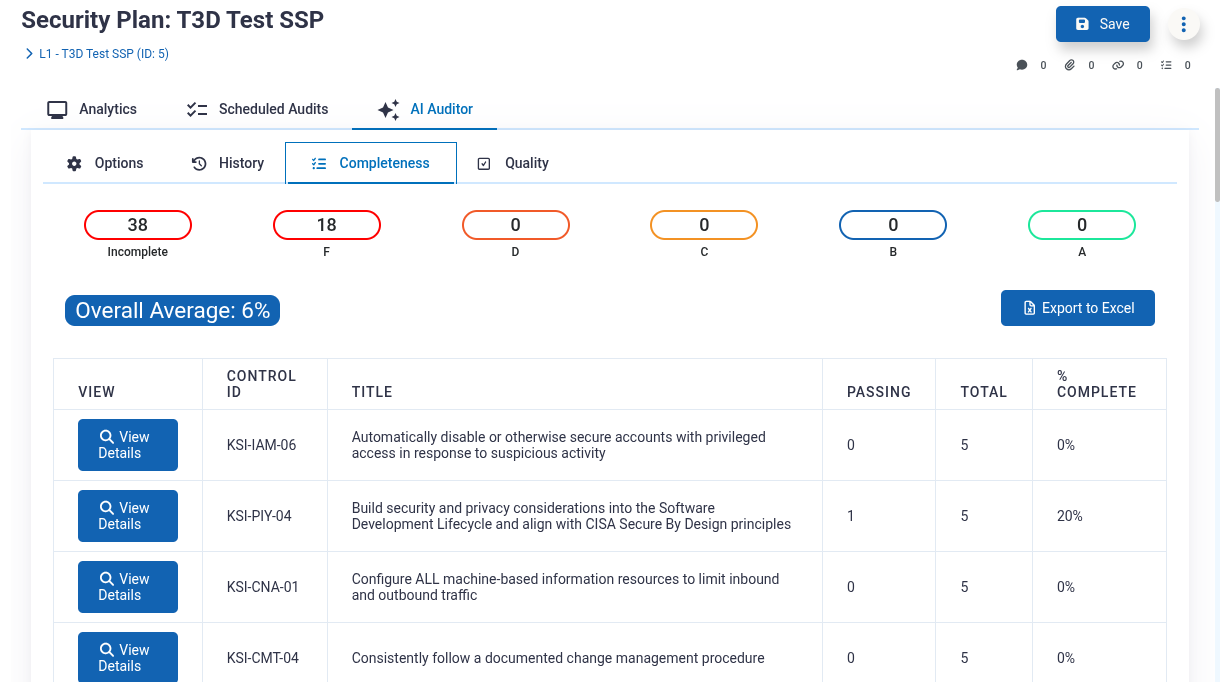
Once the audit completes, click the Completeness tab to review:
-
Grade Distribution Tiles - Click any tile to filter results:
- Incomplete (no grade)
- F (0-60%)
- D (61-70%)
- C (71-80%)
- B (81-90%)
- A (91-100%)
-
Overall Average - Average completeness score across all controls
-
Control Grid - Table showing:
- Control ID and Title
- Passing Checks / Total Checks
- Percentage Complete
-
View Details - Click to see:
- Summary of completeness status
- Error log with specific issues identified
Viewing the Quality Tab
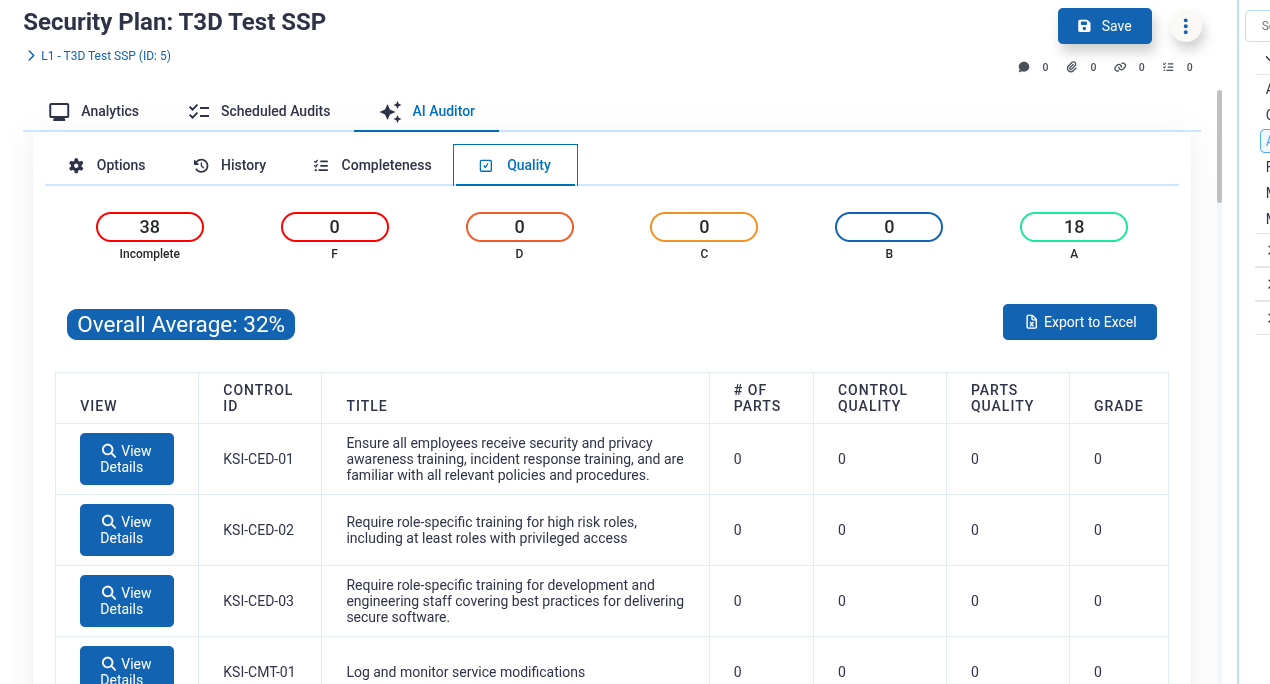
Click the Quality tab to review AI-powered quality assessments:
-
Grade Distribution Tiles - Same grade ranges as Completeness
-
Overall Average - Average quality score across all controls
-
Control Grid - Table showing:
- Control ID and Title
- Number of Parts/Objectives
- Control Quality Score
- Parts Quality Score
- Overall Grade
-
View Details - Click to see:
- Requirements analysis (Pass/Fail status)
- Detailed explanation of each requirement
- Control and part requirement breakdowns
Cost Savings Metrics
After audit completion, the Options tab displays:
- # Words Generated - Total words analyzed by the AI
- Hours Saved - Estimated manual audit time saved
- Cost Savings - Dollar value of time saved (based on tenant's blended labor rate)
Post-Processing Options
Exporting and Importing Results
Export:
- Click the "Export" button on the Options tab
- Downloads a JSON file containing completeness and quality data
- Use for record-keeping or sharing with stakeholders
Import:
- Click the "Import Existing AI Audit" button
- Select a previously exported JSON file
- Results load instantly without re-running the audit
Publishing Audit Results
- Click the "Publish" button on the Options tab
- Saves the audit to the AI Audit History for the security plan
- Creates a permanent record of:
- Completeness score
- Quality score
- Overall score
- Detailed results for both audits
- View historical audits in the History tab
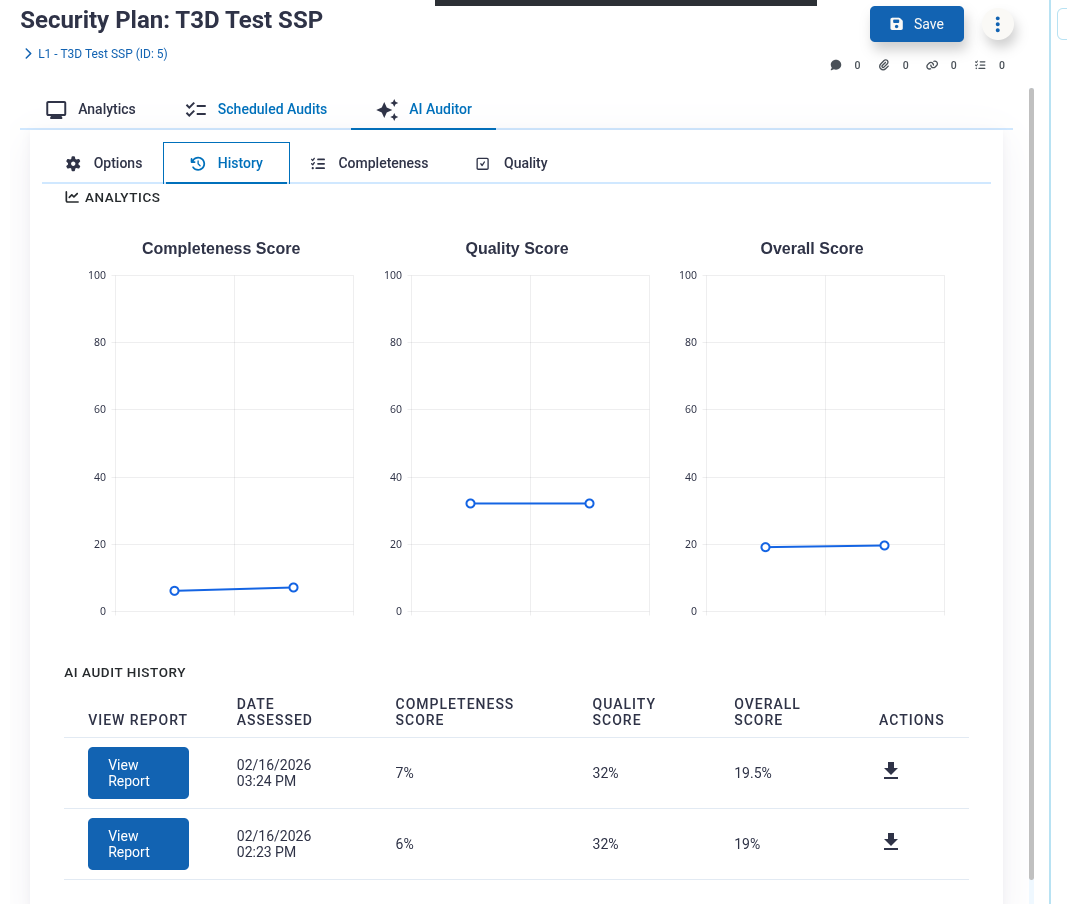
Generating Assessments in Options Tab
From Completeness Results:
- In the Completeness Options card, click "Run" under "Save Results as Control Assessments"
- Confirms creation of assessments for all controls
- Creates:
- Individual assessments for each control
- Master assessment for the security plan
- Assessment results (Pass, Partial Pass, or Fail based on grade)
- Detailed assessment reports with audit findings
From Quality Results:
- In the Quality Options card, click "Run" under "Save Results as Control Assessments"
- Same process as completeness, but uses AI quality scores
Generating Issues in Options Tab
From Completeness Results:
- In the Completeness Options card, configure:
- Score Below - Threshold percentage (e.g., 70)
- Owner - User responsible for remediation
- Issue Type - Severity level
- Due Date - Target completion date
- Click "Run" under "Generate Issues for Each Control"
- Creates issues for all controls scoring below the threshold
From Quality Results:
- In the Quality Options card, configure the same fields
- Click "Run" under "Generate Issues for Each Control"
- Creates issues based on AI quality scores
Viewing Generated Issues
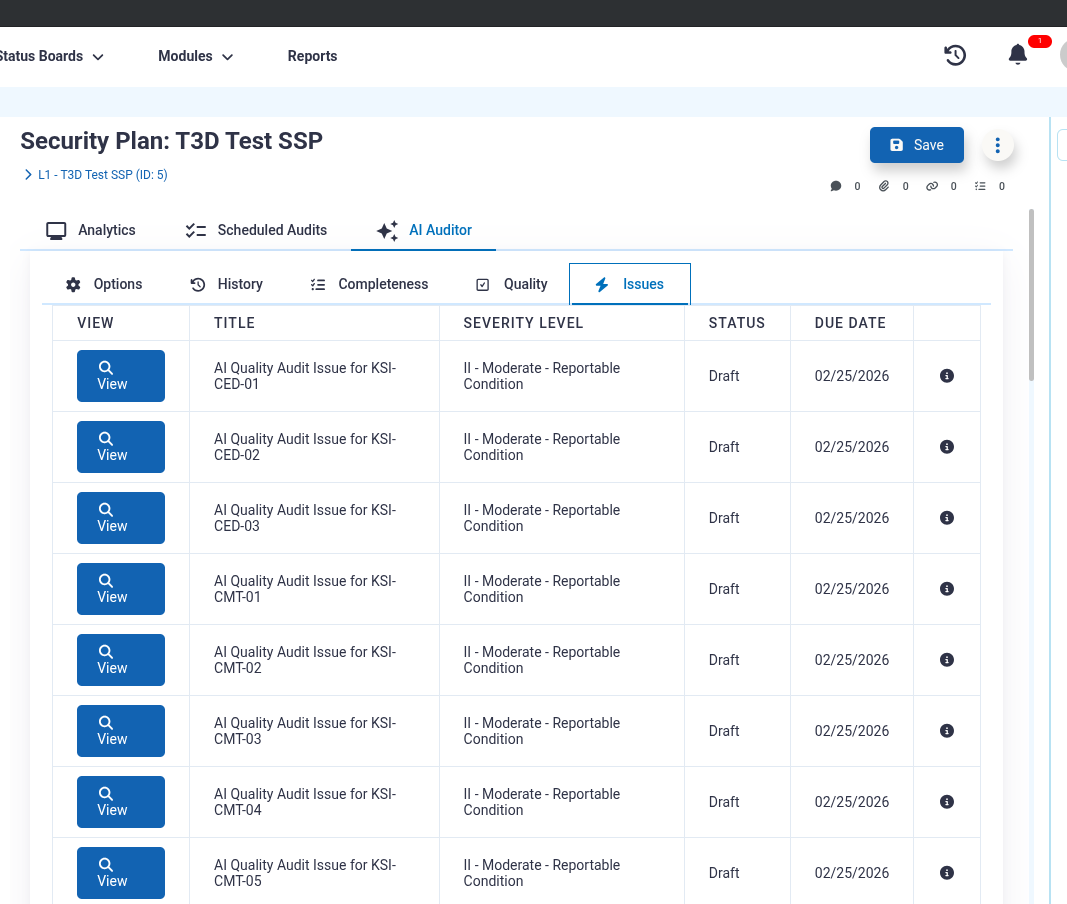
- After issue generation, the Issues tab appears
- Displays all created issues with:
- Title
- Severity Level
- Status
- Due Date
- Click "View" to open the full issue record
Audit History
Viewing Previous Audits
- Click the History tab
- View all published audits for the security plan
- Each record shows:
- Audit date
- Completeness score
- Quality score
- Overall score
Understanding Grades and Scoring
Grade Scale
| Grade | Percentage | Meaning |
|---|---|---|
| A | 91-100% | Excellent - Minimal or no issues |
| B | 81-90% | Good - Minor improvements needed |
| C | 71-80% | Satisfactory - Moderate improvements needed |
| D | 61-70% | Needs Work - Significant improvements needed |
| F | 0-60% | Unsatisfactory - Major improvements required |
| Incomplete | 0% | No data or incomplete implementation |
Completeness Scoring
Based on the number of required fields and data elements completed:
- Each control has multiple evaluation points (implementation, roles, evidence, etc.)
- Score = (Completed Points / Total Points) × 100
Quality Scoring
Based on RegML AI evaluation of:
- Control Score - Quality of the main control implementation
- Parts Score - Quality of part implementations (if applicable)
- Final Grade - Average of control and parts scores
Best Practices
Before Running an Audit
- Ensure controls are assigned - Make sure control implementations have an implementation statement
- Review prerequisite data - Verify security control catalog is loaded
- Check RegML availability - Confirm RegML features are enabled
- Allocate sufficient time - Large security plans may take 10-15 minutes to audit
Using Audit Results Effectively
- Start with high-impact items - Focus on F and D grades first
- Use filtering - Click grade tiles to focus on specific problem areas
- Review AI explanations - Read the "View Details" for context on quality issues
- Generate issues systematically - Set appropriate thresholds (typically 70-80%)
- Track progress over time - Publish audits regularly to measure improvement
Managing Issues
- Set realistic due dates - Consider workload and complexity
- Assign to appropriate owners - Ensure they have access to control data
- Use severity levels meaningfully - Align with organizational risk tolerance
- Track issue resolution - Monitor progress through the Issues module
Advanced Features
Filtering Results
- By Grade: Click any grade tile to filter the control grid
- View All: Refresh the page or switch tabs to reset filters
Exporting to Excel
- Navigate to the Completeness or Quality tab
- Click the "Export to Excel" button
- Downloads an Excel spreadsheet with:
- Control ID and title
- Scores and grades
- Audit report details
- Error codes (for completeness)
Understanding Assessment Results Mapping
When generating assessments, the auditor maps grades to assessment results:
| Grade | Assessment Result |
|---|---|
| 90%+ | Pass |
| 60-89% | Partial Pass |
| <60% | Fail |
Troubleshooting
- RegML Tools option not in Security Plans 3-dot Dropdown - Ensure you have an Enterprise license and confirm with an administrator that RegML features are enabled in the module setup.
- Audits Results Showing Incomplete for Controls - This is likely due to the control implementations not having implementation statements defined. Review the control implementations in the Security Plans module. To create implementation statements try RegML Author or Controls Author to generate implementation statements with AI.
- Completeness Audit Showing All F's - Ensure that the control implementation statement, primary responsible role, and maturity level are set. Upload evidence for the control implementations. Assessments have been created and reviewed for each control implementation.
- No Controls Available for Audit - This can happen when a security plan has no control implementations added to it yet. Return to the Security Plans record and ensure all control implementations required have been added to the Security Plan.
- Grades Seem Inaccurate - Quality audit grades are based on completeness, clarity, and alignment with control requirements. AI is used to determine requirements that exist in the control and whether or not the implementation statement is successful in meeting those requirements. Subjective differences may exist between AI and a human reviewer. Consider adding more detail to the implementation statement to address unsatisfied requirements in the Quality Audit results.
- Export/Import Failures - Ensure popup blocker or browser extensions are not preventing file downloads when trying to export audit results. If a file fails to import, ensure the file is a valid export generated by the export option in the AI Auditor.
Updated 8 months ago